


CAPELLA 2 ASSISTANCE
System installation and set-up
You have just purchased a CAPELLA 2 system. On this page, you will find installation and user guides and tips to help you get the most out of your system.
Watch the tutorial videos on our YouTube channel and consult our tips, user manual and FAQs to get the most out of your TRIANGLE CAPELLA 2.

TRIANGLE CAPELLA Application
Before starting the setup, download the ‘TRIANGLE CAPELLA’ app. It offers a range of settings to optimise the sound quality of your speakers.

|

|
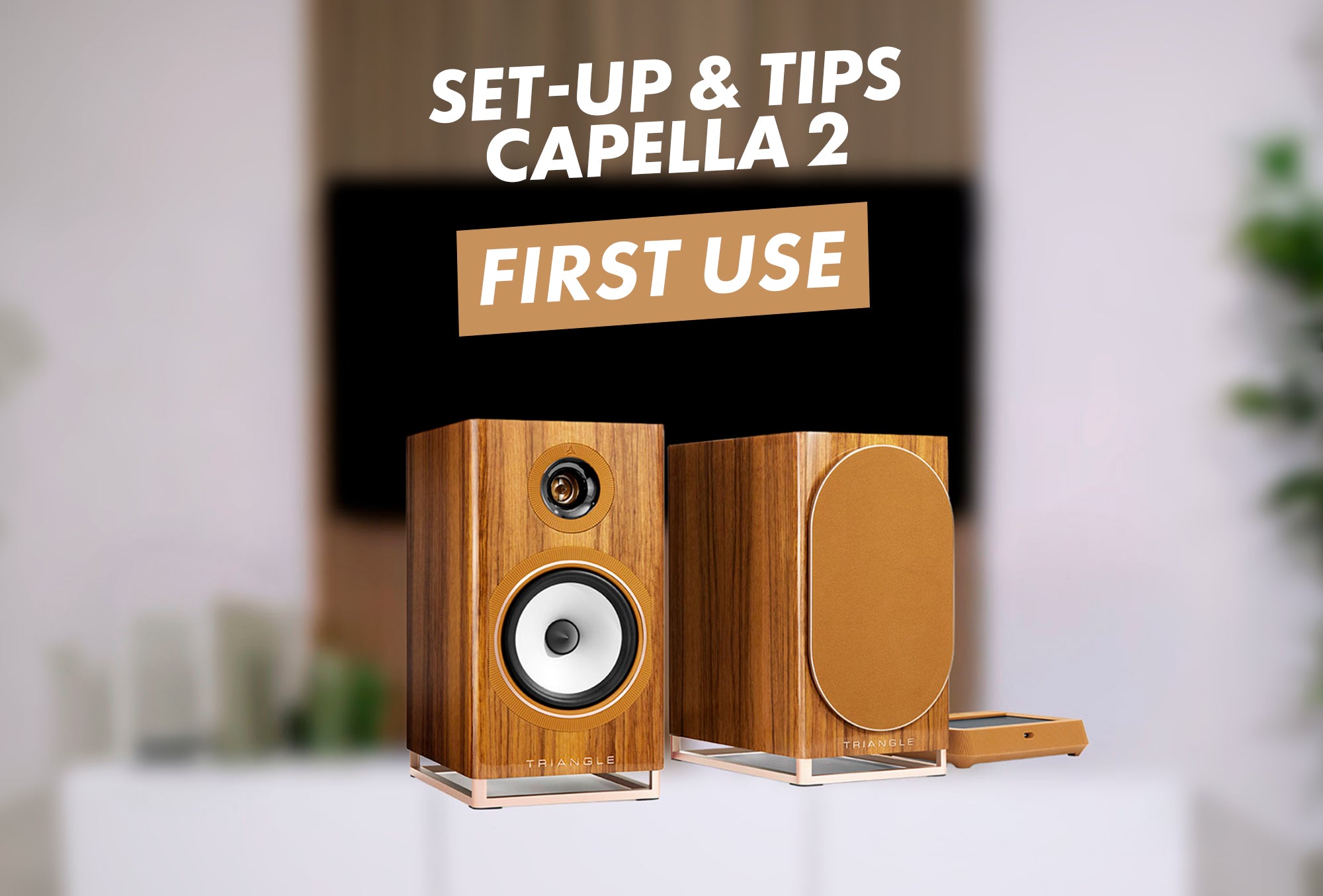
TUTORIAL #1: SETTING UP CAPELLA 2
We’ll guide you step by step through the initial setup of your Capella 2 speakers.
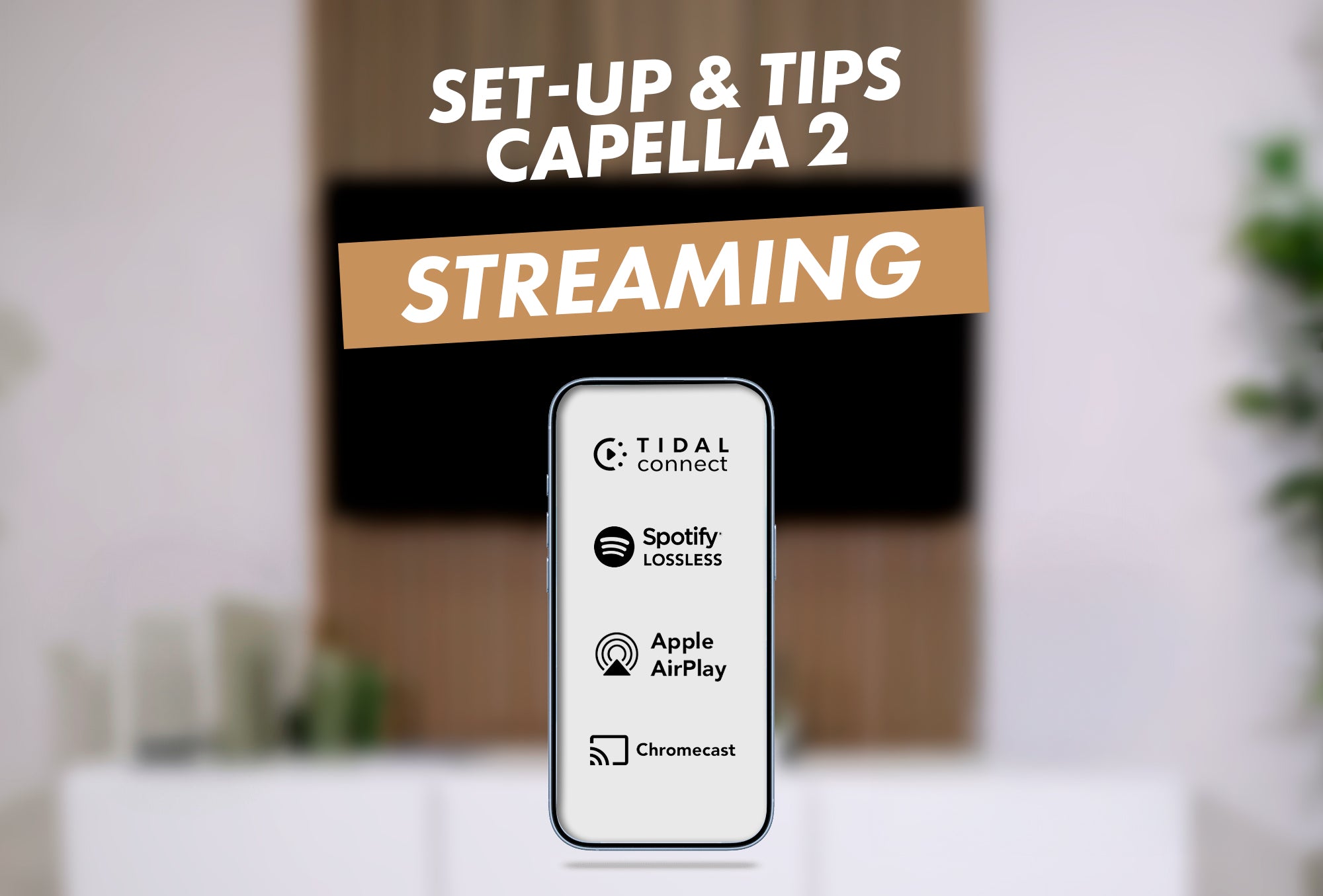
TUTORIAL #2 : STREAMING
Your CAPELLA 2 system lets you listen to all your music wirelessly, via streaming or Bluetooth.
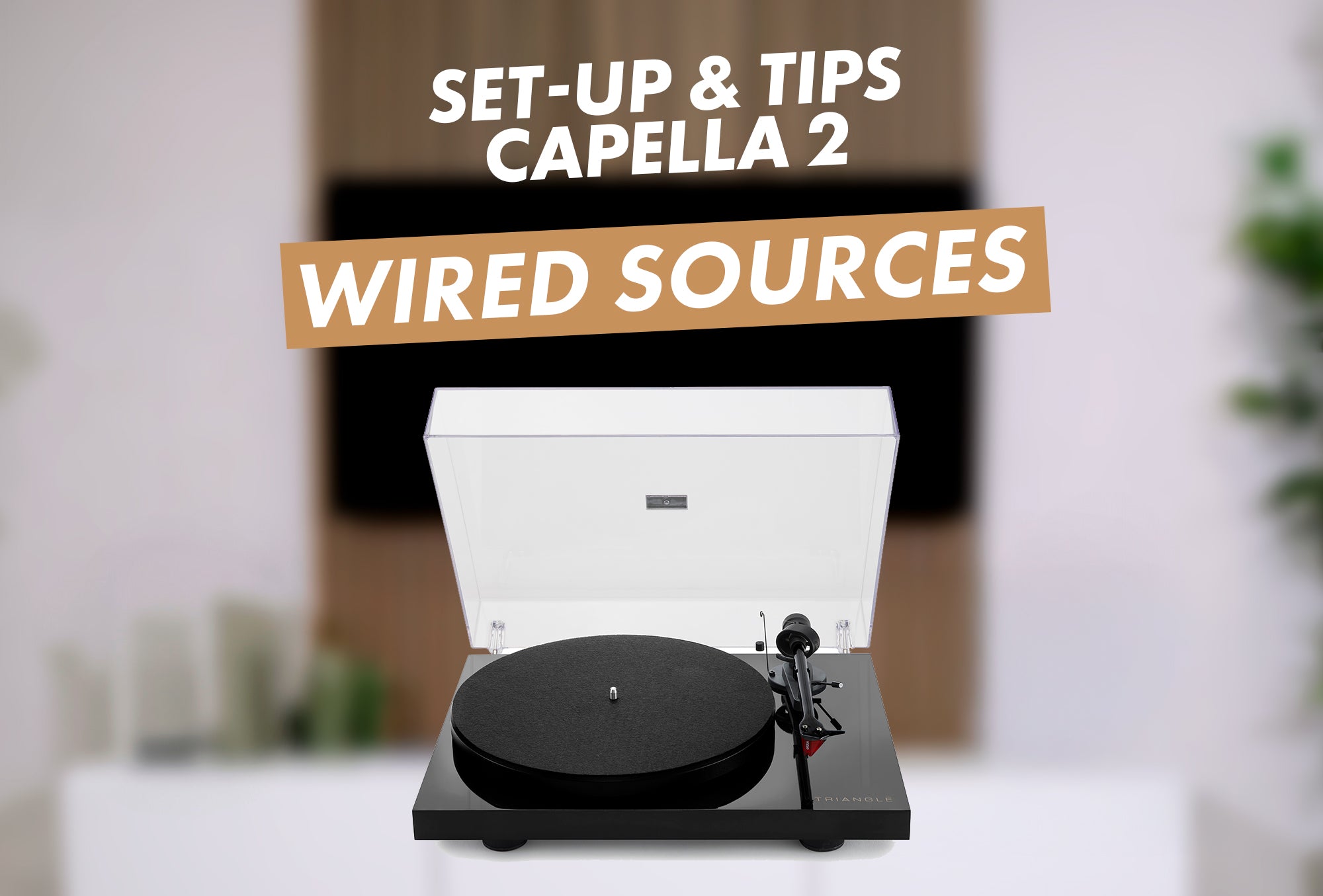
TUTORIAL #3: WIRED SOURCES
Your CAPELLA 2 system lets you listen to your music from all your wired sources!
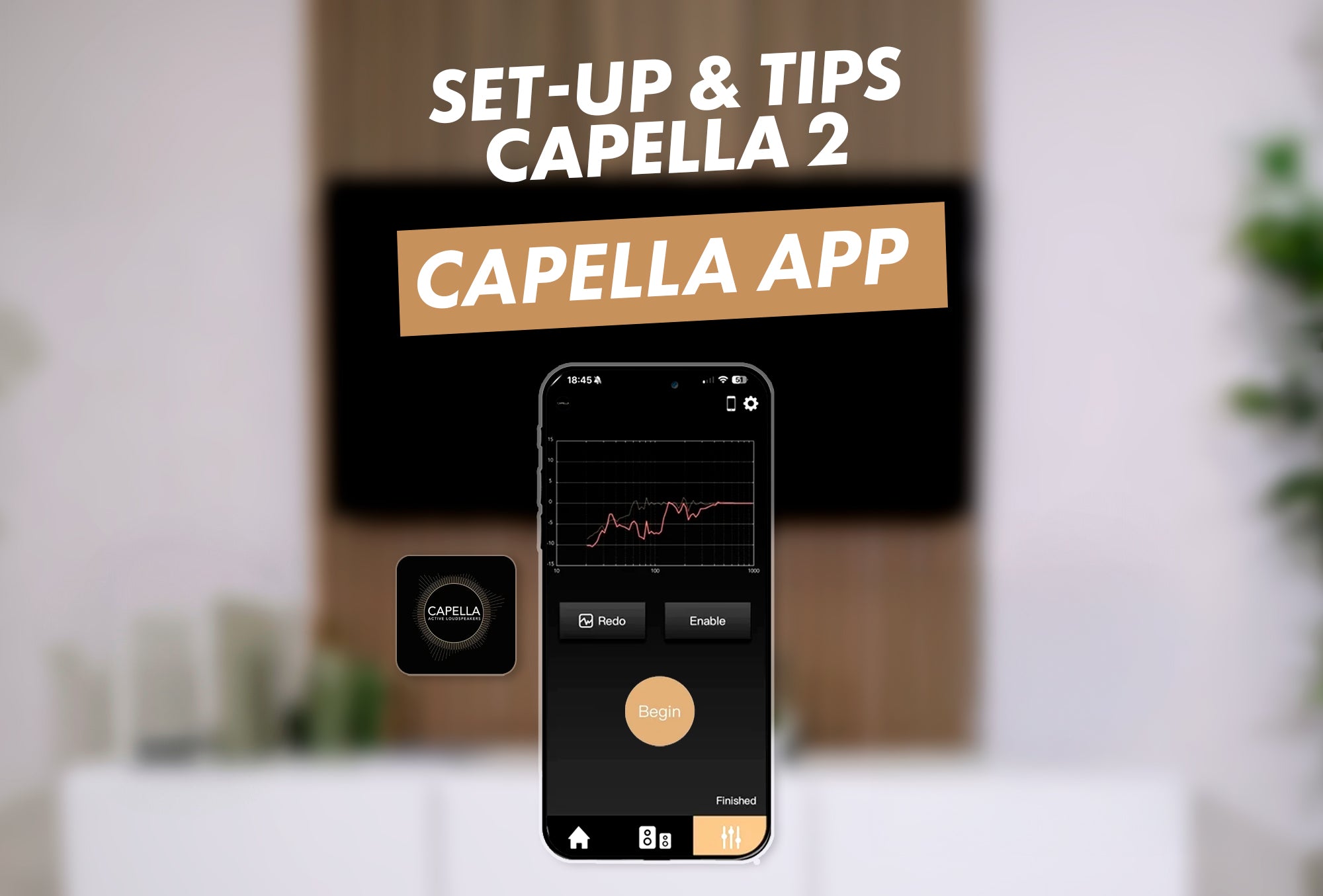
TUTORIAL #4: CAPELLA APP DETAILS
Discover all the features of the TRIANGLE CAPELLA app so you can make the most of it.
08:37 - Player tab
08:52 - ‘Speaker Layout’ settings
09:43 - ‘ROOM EQ’ equaliser
10:59 - System settings
Download the app from your phone’s app store:

|

|
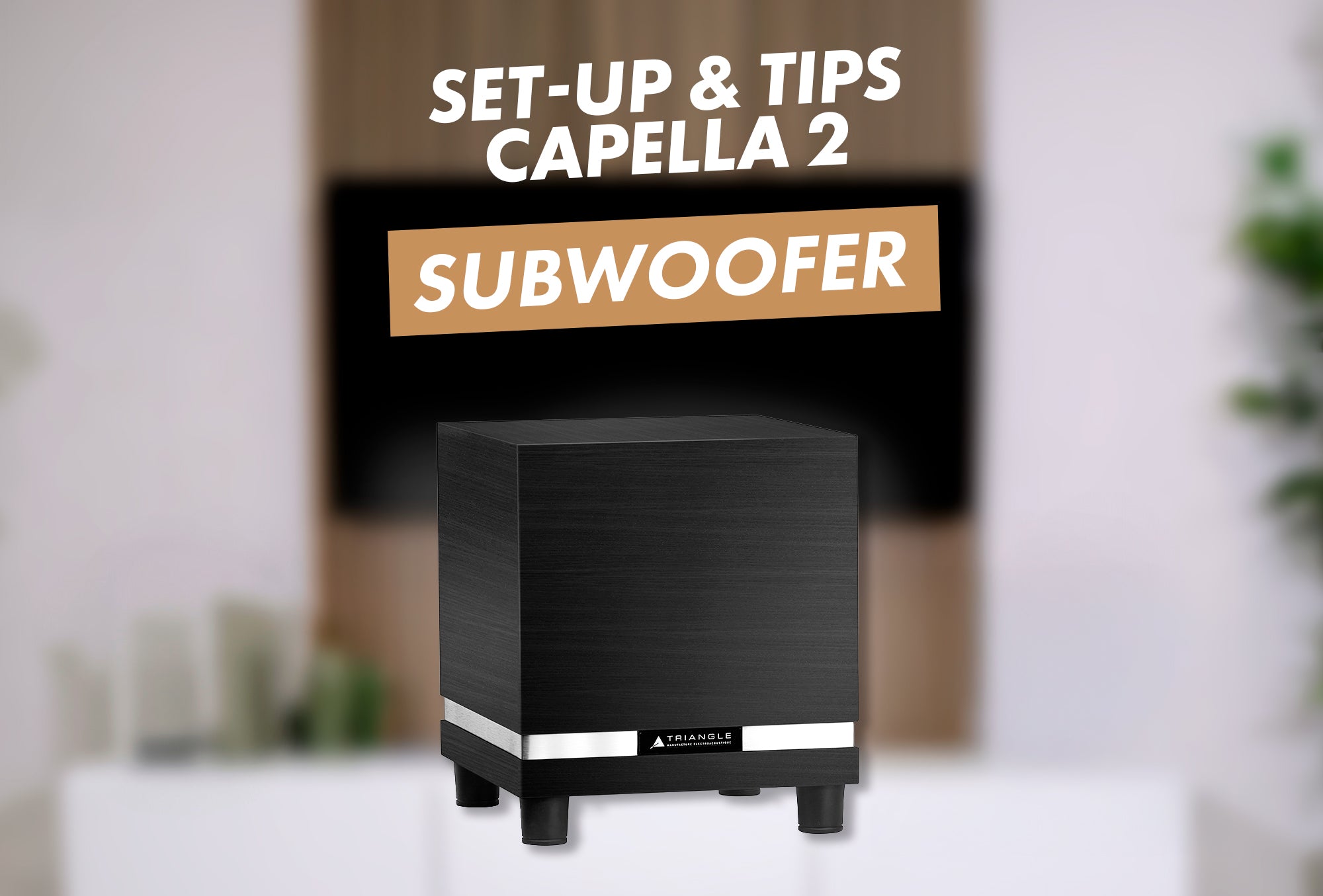
TUTORIAL #5 : SUBWOOFER
You can add a subwoofer to your CAPELLA 2 system to reinforce your speakers and enhance the bass response.
You will need a subwoofer such as the Thétis 340 and a LFE cable.
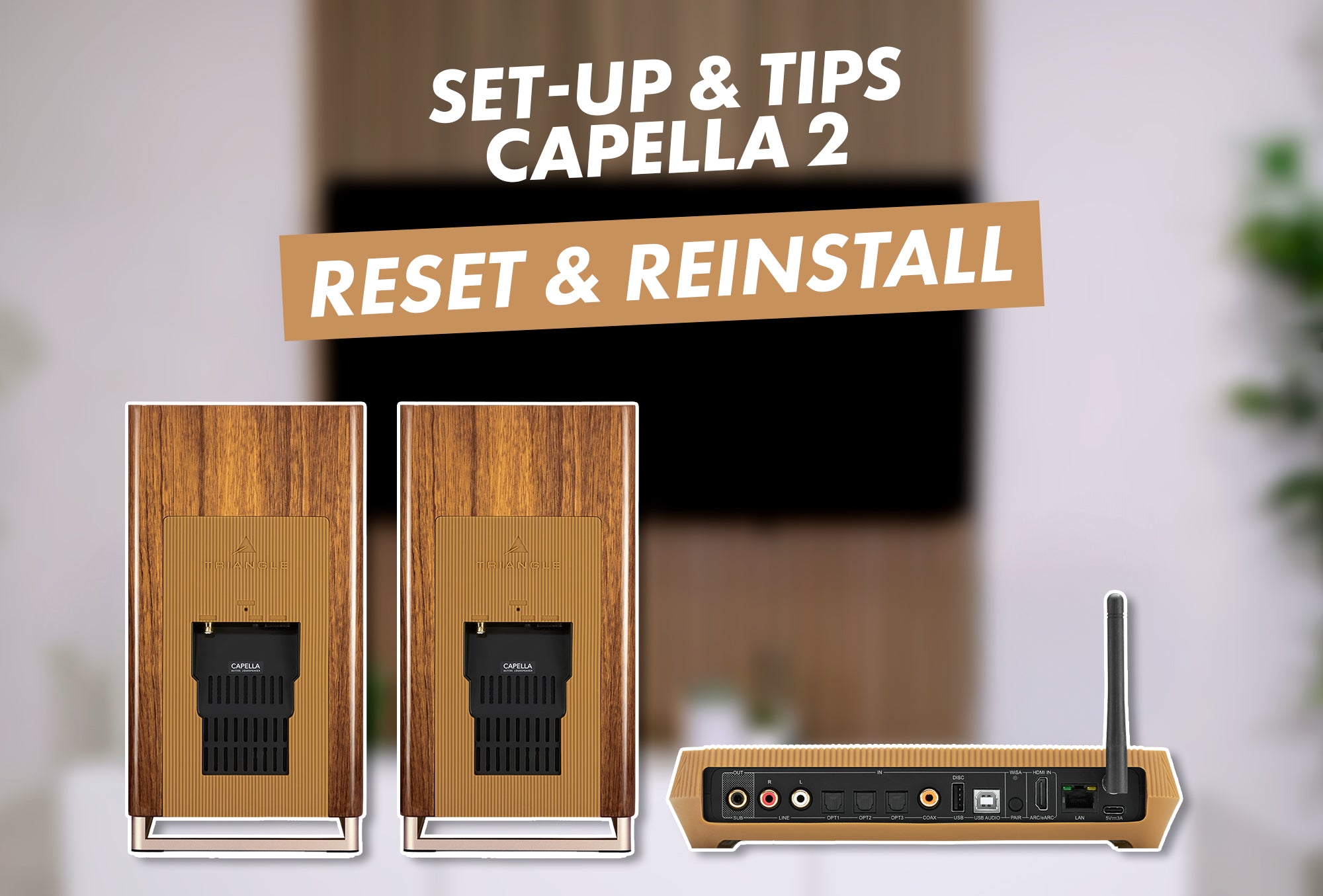
TUTORIAL #6: HOW TO RESET CAPELLA 2 ?
To reset and reinstall your CAPELLA 2 system, follow the steps in this guide:
USER MANUAL
Read the full user manual for your CAPELLA 2 speakers.
Any questions about CAPELLA 2?
Setting up your system
Screw the antenna into place, then plug the power cable into a mains socket using the appropriate plug.
The Stereo Hub will start up automatically and begin its boot sequence.
Please wait while this sequence runs; it takes approximately 70 seconds
When the WiSA LED on the back of the Hub goes out, this indicates that the Hub is ready for use !
Check the back of each speaker to see whether it is for the left or right channel, then position them on either side of your listening position.
For the best soundstage, a distance of around two metres between the speakers is recommended.
If you are using the S05 stands, ensure that the metal base of the speaker is correctly positioned and securely held on the top plate of the stand.
Then plug each speaker into a mains socket.
After a few moments, the STATUS LED will light up with a steady orange glow, indicating that the speakers are ready and successfully paired with the Stereo Hub 2.
Connecting to the Internet
Before you begin, make sure that location services are enabled in your smartphone’s settings.
Then download the TRIANGLE CAPELLA app from your phone’s app store and launch it.
Select the detected Stereo Hub 2 and follow the on-screen instructions.
Once setup is complete, the LED on the front of the Stereo Hub 2 will turn solid white, confirming that your system is successfully connected to the network.
During the initial connection, an update may be installed, which could slow down the setup process.
Simply connect the Ethernet port on the Stereo Hub 2 to your broadband router using an RJ45 cable.
You will find your Stereo Hub 2 listed in the ‘TRIANGLE CAPELLA’ app once it is connected to the network.
If you wish to access Google Cast features, open the settings in the top right-hand corner, then select ‘Wisa & Cast’.
Go to the Google Cast menu, then enable the “Activate Cast” option. Next, accept the terms of use and click “Continue in App”.
Play in streaming
If you have a Spotify subscription, use the Connect feature directly from the app.
Play a track, open the playback devices menu, then select your Stereo Hub 2.
If you have a Qobuz subscription, use the Connect feature directly from the app.
Play a track, open the playback devices menu, then select your Stereo Hub 2.
If you have a Tidal subscription, use the Connect feature directly from the app.
Play a track, open the playback devices menu, then select your Stereo Hub 2.
For these streaming services on an Android device, use Google Cast directly from the app of your choice.
For these streaming services on an Android device, use AirPlay directly from your chosen app.
You can listen to radio stations via apps such as RadioPlayer or Radio France. To do so, use AirPlay or Google Cast directly from the app of your choice.
Start by selecting the Bluetooth input on your CAPELLA 2 system using the remote control. To do this, use the left and right arrows until the Bluetooth source is displayed.
On your smartphone, tablet or computer, open the Bluetooth settings and start searching for devices. Select the Stereo Hub 2, identified either by the name you have set or by its factory name, then connect.
If your device has a volume control, we recommend setting it to around 75%, then adjusting the listening volume directly using the CAPELLA 2 system’s remote control.
Is the Stereo Hub not appearing in the list of available devices?
Open the TRIANGLE CAPELLA app, then tap the ‘source’ icon in the top-left corner. Next, go to the Bluetooth settings, enable it if necessary, and start pairing mode.
Your system is now ready to be detected.
You can then connect via your device’s Bluetooth settings. Once the connection is established, you can disable pairing mode if you wish.
 Connecting a wired source
If your turntable has a built-in phono preamplifier, such as the Lunar 3, connect it directly to the Line input on the Stereo Hub 2 using an RCA cable.
If your turntable does not have a built-in phono preamplifier, such as the Lunar 1, first connect it to an external phono preamplifier using an RCA cable, ensuring you connect the ground cable if your turntable supports this.
Then connect the phono pre-amp’s output to the Line input on the Stereo Hub 2. All you need to do now is select the Line input using the remote control.
If your device is compatible, connect its HDMI ARC output to the HDMI input on the Stereo Hub using an HDMI cable.
In your TV’s settings, set the audio output to ‘PCM Stereo’, then select the HDMI input on the Stereo Hub 2 using the remote control.
If your TV does not have HDMI ARC, you can also use an optical connection.
Connect your TV’s optical output to the Stereo Hub 2’s optical input, then select the optical input using the remote control.
All that’s left to do is start your programme and enjoy the sound from your CAPELLA 2 system.
You can use an optical, coaxial or RCA connection.
Connect your CD player using the appropriate cable, linking the output of your CD player to the corresponding input on the Stereo Hub 2.
Then select the correct input using the remote control.
Switch on your system, insert a CD and enjoy your music!
Use a USB B to USB A or USB C cable to connect your computer to the USB Audio input on the Stereo Hub 2.
Then select the USB input using the remote control.
Finally, in your computer’s audio settings, select the Stereo Hub 2 as the audio output device.
 Add a subwoofer
You can add a subwoofer to your CAPELLA 2 system to enhance the bass response.
To do this, use a compatible LFE cable to connect the ‘SUB OUT’ output on your Stereo Hub to the input on your subwoofer, then switch it on.
To configure it, launch the TRIANGLE CAPELLA app and go to the second tab. Here you can check that your subwoofer has been detected and is in use. If this is not the case, enable 2.1 Layout mode.
On this page, you can choose whether or not to enable your subwoofer, as well as adjust its sound output via the ‘Bass Management’ tab.
You can then select a crossover frequency to fine-tune the bass response to suit your listening preferences.
A team at your service
ANY QUESTIONS? CONTACT US.
Our teams are available Monday to Friday from 9am to 5pm to answer any questions you may have and assist you with your purchase. (local call rates apply)

CAPELLA 2
DISCOVER THE PRODUCT
FAST & SECURE DELIVERY
We deliver everywhere in the world. We pack carefully your product and use premium logistics company to make sure you receive your product quickly in perfect conditions.
TRY AND LISTEN
To make sure you are always satisfied, we give you 30 days to listen and try our product at home. If it doesn’t meet your expectations, send it back to us and you get fully refund. (Our Return & refund Policy)
CUSTOMER SERVICE
We answer your questions and gives you tips and advice to build the best sound system. Our team based in France at our Soissons workshop will share their expertise with you.

SECURE PAYMENT
All your payments are secured by SSL encryption technology, all your personal data cannot be seen or used by TRIANGLE or any third parties. Privacy Policy